-
Check three details in the same store listing
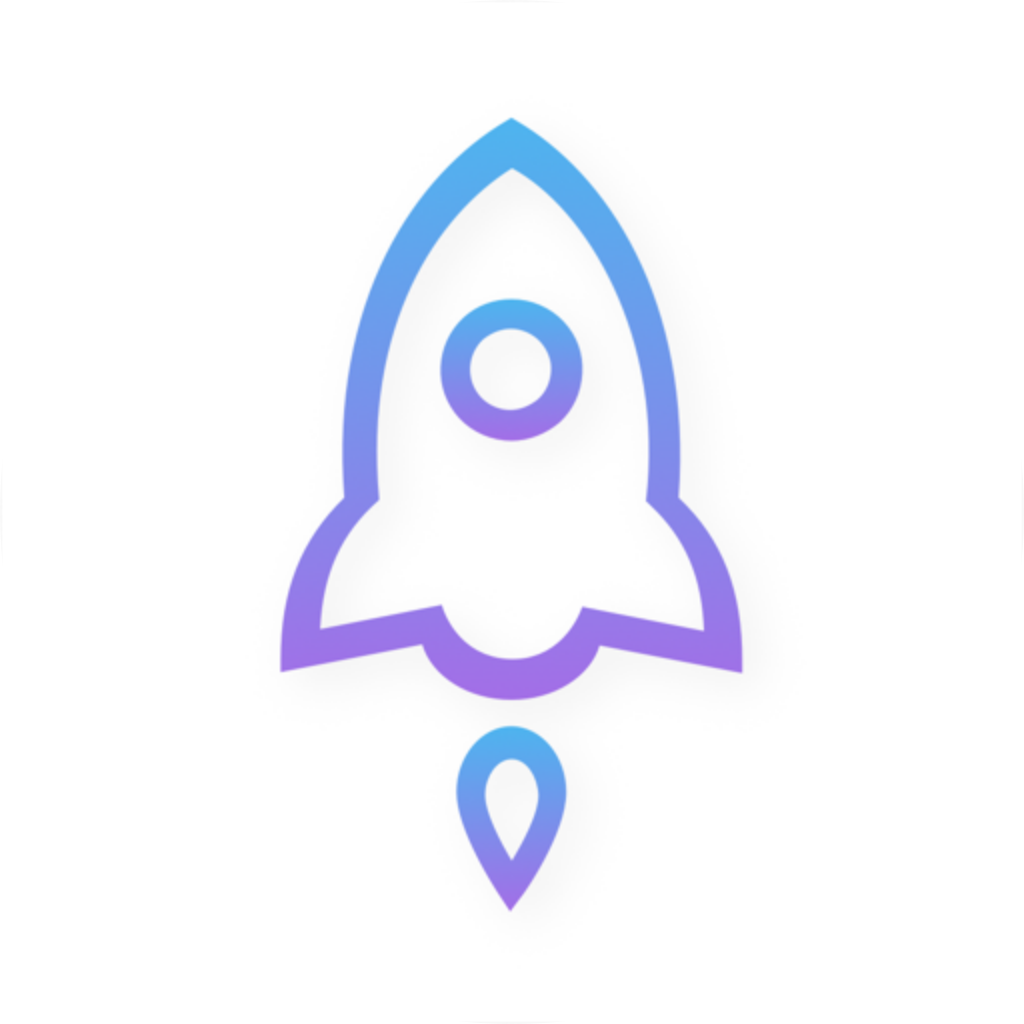
Open the App Store product page from the download page and check the app name and icon first. The official icon has a white background with a blue-violet outline. Then check that the developer is Shadow Launch Technology Limited, and confirm that the shared link ends with id932747118. The app ID distinguishes product listings; do not rely on search result position or a similar-looking icon. If several results have similar names, return to the download page and reopen the correct listing instead of repeatedly changing your search terms.
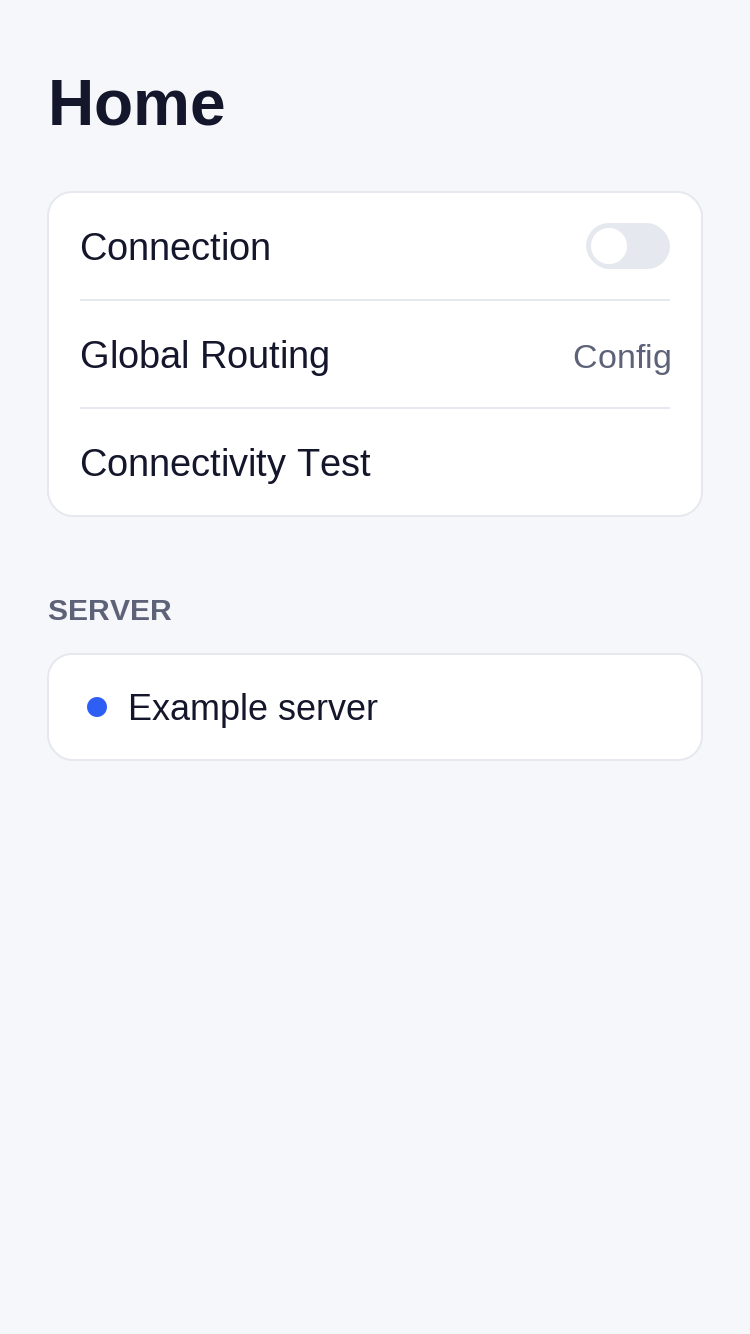
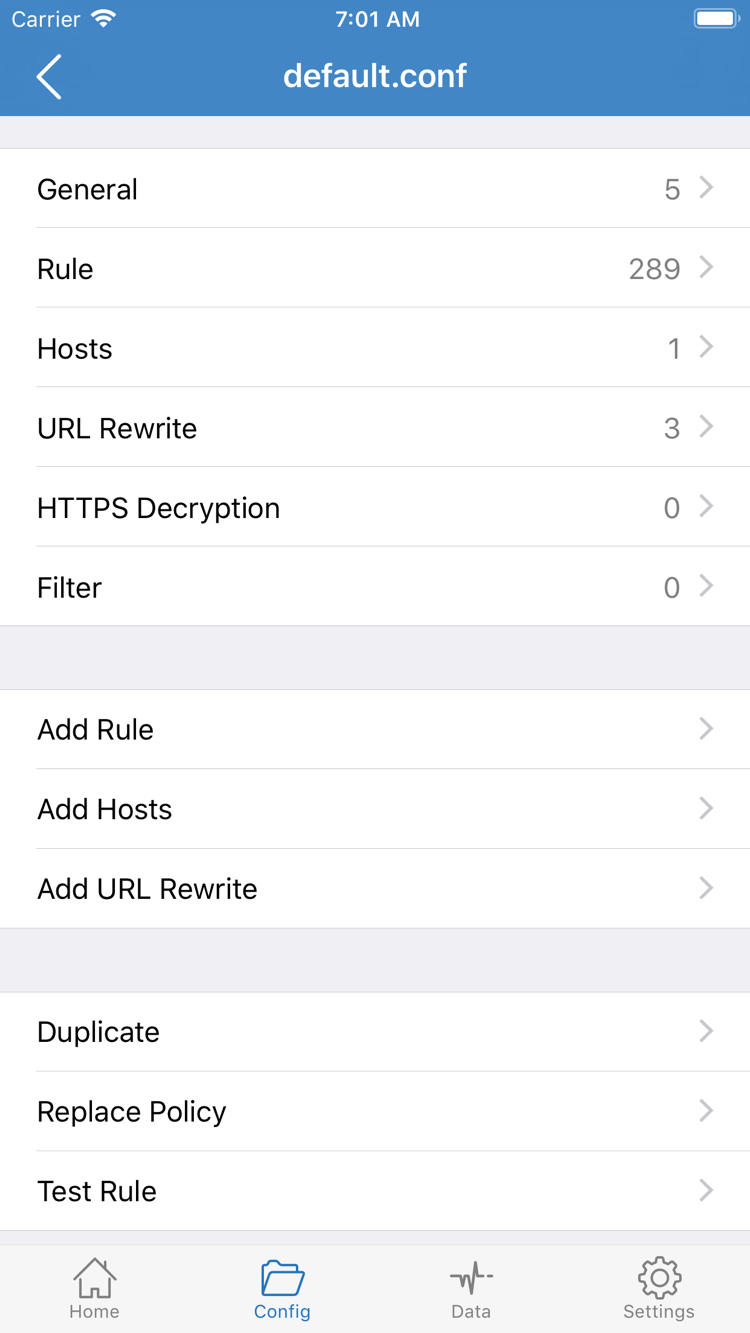
The product page also includes app previews and device compatibility information. The previews can help identify Home and Config, but appearance alone does not verify identity; use the developer, app ID and official icon in the same listing.
-
Store availability depends on the account region
Being able to open a product description on the web does not mean the app is available in the store for your current account. The device display language, the storefront used by the webpage and the storefront associated with the purchasing account are separate things. If a redirect says the item is unavailable, check the country or region in your App Store account settings, then confirm that the listing appears in that account's storefront. The app is not listed in the mainland China App Store. If you need to change your account region, review the store's listed requirements first. Do not choose a similarly named result just because the listing does not appear in search.
Check compatibility separately: iPhone / iPad system requirements are as listed on the App Store page. If the app can be installed on one device but not another, check the storefront used by the account and the system on each device rather than treating the issue as a duplicate purchase.
-
Restore a purchase when changing devices, then check the configuration
On the US App Store, iPhone / iPad cost a one-time $2.99, and the purchase can be shared across both device types; Mac / Windows / Android / Linux versions are free. Other storefronts show local currency; the amount shown at checkout is the final price. When changing devices or reinstalling, sign in on a compatible device with the original purchasing account and download the app again from App Store purchases. If you cannot find the purchase, first confirm that the account currently used for Media & Purchases is the one that paid for it.
Reinstalling restores the client, not server entries, the selected configuration or On Demand conditions. After opening the app, check that Home has the expected servers, confirm the active file in Config, then verify with a manual connection. If you previously enabled iCloud sync, check each item to confirm it synced. App Store can manage subsequent client updates.
-
Get desktop and Android versions from the matching platform card
On this site's download page, choose the installer that matches your device: Mac has Apple Silicon and Intel versions; for Windows, check the system type; for Android, check arm64; for Linux, check both the architecture and package format. Get updates again from the corresponding platform card. If you have kept an older installer, make sure you are opening the file just downloaded from this site, not an older file with a similar name in your downloads folder.
If the system displays a permission or source prompt, first confirm that the file came from this site's /dl/shadowrocket/, then follow the installation instructions for your system. Stop if the source or architecture is unclear; do not apply steps for another platform to your device. Before changing devices, keep copies of configurations and connection details that you manage so you can compare them after installation.
-
A client purchase is not a service plan
Buying or downloading Shadowrocket gives you the client. This site does not provide, sell or recommend nodes or subscriptions; get subscription links from your service provider. If you already have a subscription, import it with Subscribe and check the SERVER group. For individual server details, use Add Server and enter each field. Finding a purchase in App Store does not mean a subscription is still valid; similarly, a subscription update from a service provider does not change App Store purchase records.
When troubleshooting, first identify the step where the issue occurs: if you cannot find the app, check the listing, region and compatibility; if the app opens but the list is empty, check the import format; if an entry appears but some destinations will not open, check Global Routing, rules and DNS. When checking details with your service provider, describe only the relevant protocol, symptoms and time of occurrence. Avoid sharing a full subscription URL, password or screenshots containing them.